USB flash drives, commonly known as thumb drives, key drives, or pen drives, have become indispensable tools for storing personal and business files. With their compact size and portability, these devices offer a convenient way to transfer and store data. However, like any storage medium, USB drives are susceptible to data loss due to various factors, such as system corruption, file system crashes, and virus attacks. Understanding how to recover data from a USB flash drive can save you from the frustration of losing important files.
Common Causes of Data Loss on USB Flash Drives
Several issues can lead to data loss on a USB flash drive, including:
- System Corruption: When the USB drive is not safely ejected or removed improperly, it may cause file system corruption, making data inaccessible.
- File System Crashes: If the file system of the USB drive becomes corrupted due to system errors or improper formatting, files may become unreadable or lost.
- Virus or Malware Attacks: USB drives are highly susceptible to viruses and malware, which can damage or delete files.
- Accidental Deletion: Files can be mistakenly deleted while managing or transferring data on the USB drive.
In some cases, files may seem to disappear completely, leading to concerns about permanent data loss. Fortunately, data recovery is often possible if the files have not been overwritten.
Can Deleted Data Be Recovered from a USB Flash Drive?
Data loss on a USB flash drive does not always mean the data is gone forever. When files are deleted, they are not immediately erased from the drive. Instead, the space previously occupied by the files is marked as available for new data. As long as new files have not overwritten the deleted files, it is possible to recover them.
Important Tip: Once you realize data loss has occurred, avoid using the USB flash drive. Writing new data to the drive increases the likelihood of overwriting the deleted files, making recovery more difficult or even impossible.
Steps to Recover Data from a USB Flash Drive
Step 1: Check the USB Drive for Errors
Before proceeding with any recovery attempt, it’s a good idea to check the drive for errors. This can help identify any logical issues that may be preventing access to your data.
- On Windows: Right-click on the USB drive, select Properties, go to the Tools tab, and click Check under the Error checking section.
- On macOS: Open the Disk Utility application, select your USB drive, and click First Aid to repair any potential issues.
Step 2: Use Data Recovery Software
If checking the drive for errors does not restore the data, the next step is to use data recovery software. Many software tools are designed specifically for recovering lost or deleted files from USB flash drives.
One popular tool is Leawo Data Recovery for Mac, which can effectively recover a wide range of file types from a USB drive, including:
- Documents (Word files, Excel spreadsheets, etc.)
- Multimedia files (Photos, videos, music)
- System files and other important data
Steps to recover data using Leawo Data Recovery for Mac:
- Download and Install the Software: Install Leawo Data Recovery on your Mac. Ensure that the USB drive is properly connected to your computer.
- Select the USB Drive: Launch the software, select your USB flash drive from the list of available drives, and click Scan to begin searching for lost files.
- Preview and Recover: Once the scan is complete, preview the files that can be recovered. Select the files you want to restore and click Recover to save them to another storage device.
Step 3: Use Alternative Recovery Tools
If Leawo Data Recovery for Mac does not work for your needs, other popular recovery tools include:
- Recuva (Windows): A free and user-friendly option for recovering files from various storage devices, including USB drives.
- PhotoRec (Windows, macOS, Linux): A powerful open-source tool designed for file recovery, especially for multimedia files.
- Disk Drill (Windows, macOS): A comprehensive data recovery tool that supports a wide range of file types and storage devices, including USB flash drives.
Step 4: Consider Professional Data Recovery Services
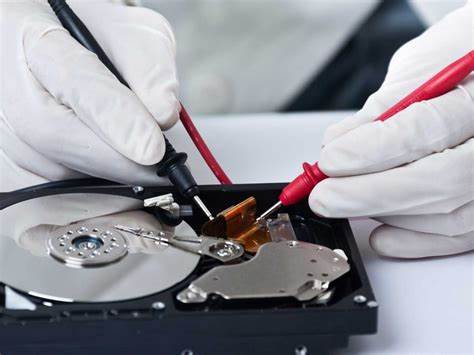
In cases where DIY software solutions fail, or if the USB drive has suffered physical damage (e.g., it has been dropped or exposed to water), you may need to seek professional data recovery services. These services have the specialized tools and expertise to recover data from physically damaged drives in cleanroom environments, ensuring the best possible outcome.
Best Practices to Prevent Future Data Loss
To reduce the risk of future data loss on your USB flash drive, consider the following best practices:
- Safely Eject the Drive: Always eject your USB flash drive safely to avoid file system corruption.
- Keep Your USB Drive Protected: Avoid exposing the drive to extreme conditions (e.g., heat, moisture, physical impact) that could damage it.
- Use Antivirus Software: Protect your USB drive from malware by running antivirus software on both your computer and the USB device.
- Regular Backups: Periodically back up the data stored on your USB drive to a secure location, such as an external hard drive or cloud storage.
Conclusion
Data loss from a USB flash drive can be distressing, but it is often possible to recover lost or deleted files. By understanding the causes of data loss and taking immediate action—such as using recovery software and avoiding further use of the drive—you can maximize your chances of a successful recovery. For severe cases, professional recovery services are available to ensure your data is restored to the best extent possible. By following proper precautions, you can help prevent future data loss and protect your valuable files.
About the Author