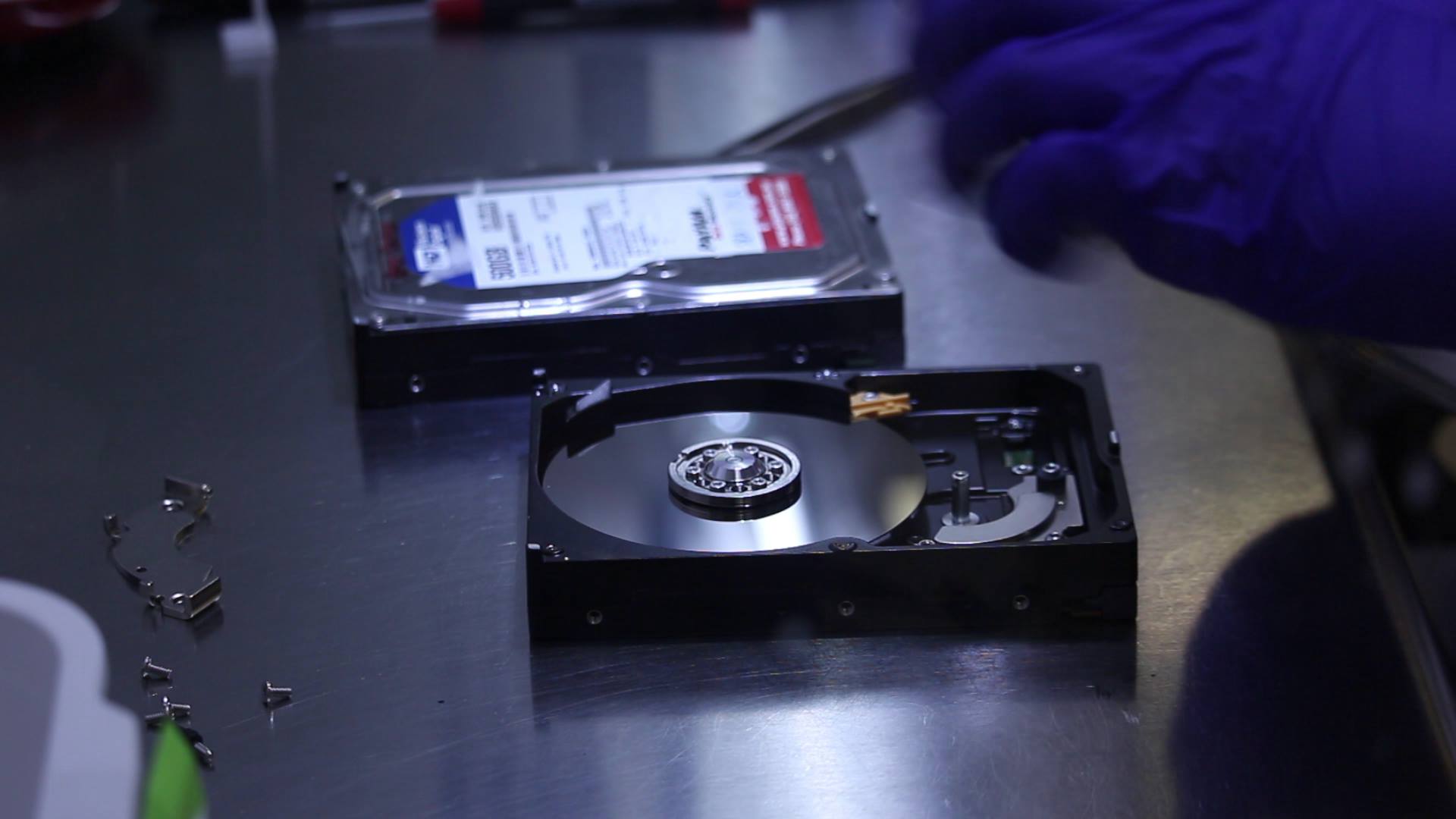
Data loss due to a damaged hard drive can be a frustrating experience, particularly when it involves important files and documents. While professional data recovery services can be expensive, with costs ranging from $150 to $1500, there are affordable and effective solutions available for recovering lost data. One of the most reliable and cost-effective methods is using data recovery software designed to handle damaged drives.
In this guide, we’ll walk you through the process of recovering data from a damaged hard drive using data recovery software. By following these steps, you can recover your data safely without the need for expensive services.
The Cost-Effective Solution: Data Recovery Software
When it comes to recovering data from a damaged hard drive, data recovery software offers a practical and affordable alternative to costly professional services. Typically priced around $50, this software allows you to recover lost files at a fraction of the cost.
Among the top tools for hard drive recovery is Recoverit Data Recovery, a powerful software solution that can restore data from a range of data loss scenarios, including those caused by physical or logical damage to the hard drive.
Why Use Recoverit Data Recovery for Damaged Hard Drive?
Recoverit Data Recovery is an ideal tool for addressing various types of data loss, even from a hard drive that won’t boot. Whether the hard drive is damaged due to corruption, accidental formatting, or a system crash, Recoverit is capable of recovering a wide variety of data, including:
- Documents (Word, Excel, PowerPoint, PDFs)
- Multimedia files (Photos, videos, music)
- Archives (ZIP, RAR, etc.)
- Emails (Outlook files)
- And more…
Key Features of Recoverit Data Recovery:
Quick and Safe Recovery: The software ensures minimal risk to your data by scanning the drive thoroughly and recovering files without overwriting existing data.
Bootable Disc Creation: Recoverit allows you to create a bootable disk to operate a non-bootable hard drive, facilitating recovery from a “dead” drive.
Wide File Format Support: Over 1,000 file formats can be recovered, providing a high success rate for data restoration.
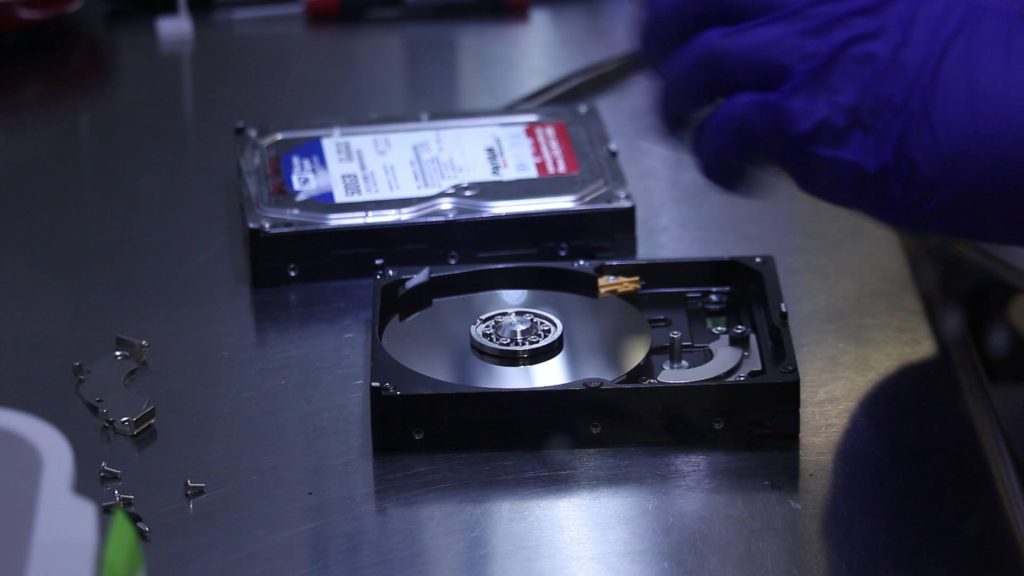
Step-by-Step Guide to Recover Data from a Damaged Hard Drive
If your hard drive is damaged and you wish to recover your files, follow these steps:
Step 1: Download and Install Recoverit Data Recovery
- Download the software: Go to the official website and download the Recoverit Data Recovery software for Windows. The software is available for both Windows and macOS platforms.
- Install the software: Once the download is complete, install Recoverit on your computer. Make sure to install it on a different drive or partition to avoid overwriting the data on the damaged drive.
Step 2: Connect the Damaged Hard Drive
- Connect the damaged drive: If your damaged hard drive is an external device, connect it to your computer via USB or other appropriate connections.
- Ensure detection: Verify that your computer recognizes the connected hard drive. You can check this by opening This PC or Disk Management on Windows to confirm the drive appears.
Step 3: Launch the Software and Select the Damaged Drive
- Open Recoverit: Launch the software after installation.
- Select the damaged drive: In the main interface, you’ll see a list of available drives. Select the damaged hard drive that you want to recover data from.
Step 4: Scan the Hard Drive for Lost Data
- Start scanning: Click on the Start button to begin the scanning process. Recoverit will perform a deep scan to find lost, deleted, or inaccessible files from the damaged drive.
- Wait for the scan to complete: The duration of the scan will depend on the size of the drive and the extent of the damage. Be patient as the software thoroughly checks the drive for recoverable files.
Step 5: Preview and Recover Data
- Preview the results: Once the scan is finished, you will be able to preview the recovered files. The files are organized by type, making it easier to locate specific documents, photos, or videos.
- Select and recover files: Choose the files you wish to recover and click Recover to save them to a safe location, such as another drive or an external storage device. Do not save the recovered data to the same damaged drive, as this could overwrite the remaining recoverable files.
Additional Tips for Successful Data Recovery
- Do not use the damaged drive: After data loss, avoid using the damaged hard drive to prevent overwriting. Always connect it to another computer or use recovery software immediately.
- Use a bootable disc: If your hard drive won’t boot, creating a bootable disc can be a lifesaver. This option allows you to operate the system directly from a USB or CD without needing to boot from the damaged drive.
- Backup regularly: To prevent future data loss, consider setting up regular backups for important files using cloud storage or external hard drives.
Conclusion
Recovering data from a damaged hard drive does not have to be an expensive or overwhelming process. By using reliable and affordable data recovery software like Recoverit Data Recovery, you can safely restore lost files without the need for costly professional services. Whether your hard drive is unresponsive or has suffered logical damage, Recoverit offers an easy and effective solution to recover over 1,000 types of files, saving you time, money, and stress.
About the Author